




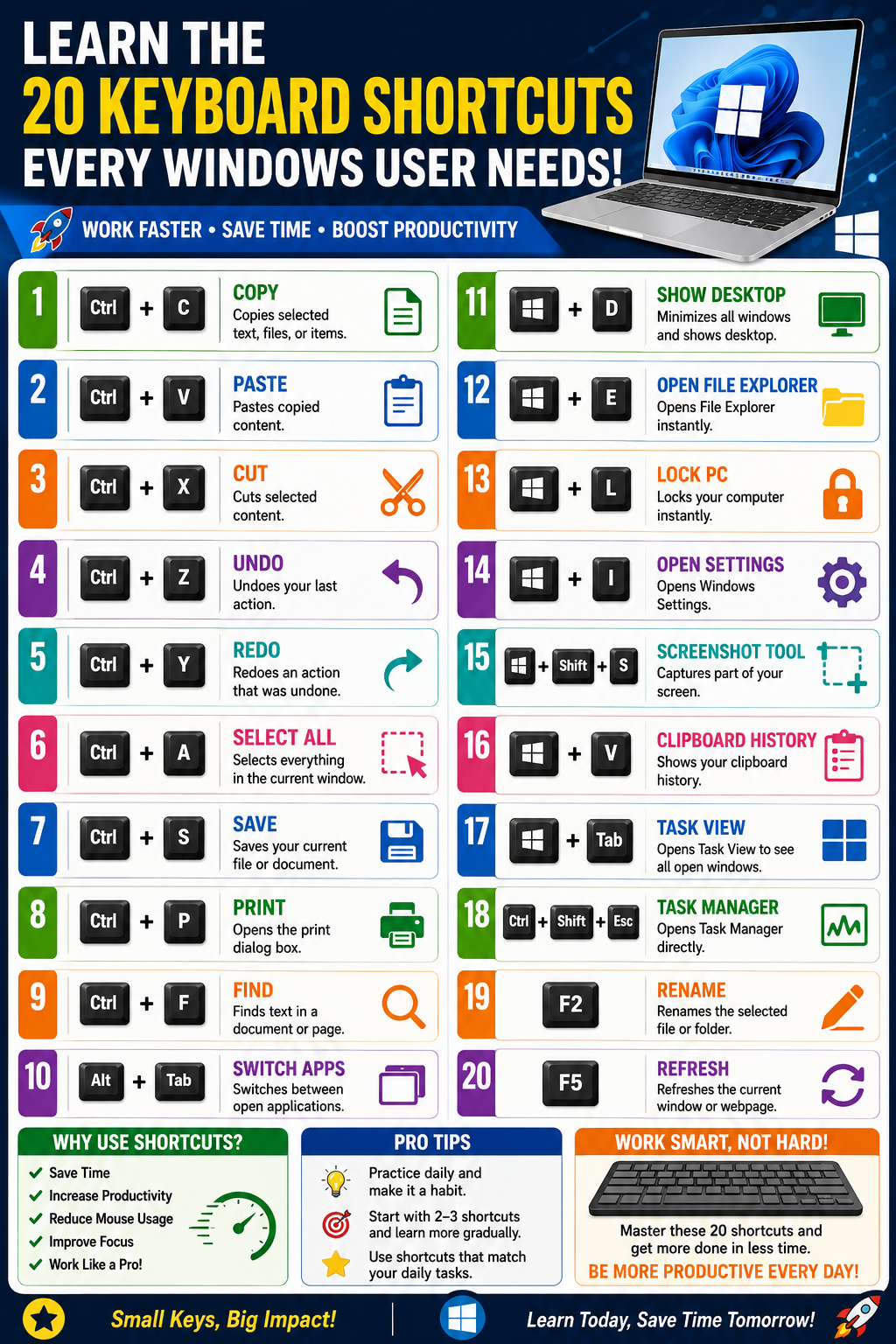
20 Windows Keyboard Shortcuts Every User Should Know (2026 Guide)
Learn the 20 Keyboard Shortcuts Every Windows User Needs
If you use a Windows computer every day, chances are you’re spending more time clicking with a mouse than necessary. Learning a few keyboard shortcuts can dramatically improve your speed, reduce repetitive mouse movements, and make everyday tasks much easier.
Whether you’re a student, office employee, freelancer, content creator, programmer, or casual PC user, mastering Windows keyboard shortcuts is one of the simplest ways to become more productive.
The best part? You don’t need to memorize hundreds of commands. Just learning the 20 most useful shortcuts can save you hours every month.
Why Keyboard Shortcuts Matter
Keyboard shortcuts are combinations of keys that perform tasks instantly without opening menus or using a mouse.
Benefits include:
- Faster workflow
- Better productivity
- Less hand movement
- Easier multitasking
- Reduced repetitive strain
- Improved focus
Many professionals rely on shortcuts every day because they make routine tasks quicker and more efficient.
20 Essential Windows Keyboard Shortcuts
1. Ctrl + C — Copy
Copies selected text, files, folders, or images.
Best for:
- Documents
- Emails
- File management
- Web pages
2. Ctrl + V — Paste
Pastes the copied item.
Example:
Copy text from Word and paste it into an email.
3. Ctrl + X — Cut
Moves selected content by removing it from its original location.
Perfect for:
- Moving files
- Rearranging paragraphs
- Organizing folders
4. Ctrl + Z — Undo
Instantly reverses your last action.
Useful when:
- You delete text accidentally.
- You move a file by mistake.
- You make an editing error.
5. Ctrl + Y — Redo
Restores an action that was undone.
Especially useful while editing documents.
6. Ctrl + A — Select All
Selects everything in the current window.
Examples:
- Entire document
- All photos
- All files in a folder
7. Ctrl + S — Save
One of the most important shortcuts.
Always press Ctrl + S frequently while working to reduce the risk of losing unsaved work.
8. Ctrl + P — Print
Opens the print dialog in most applications.
Works in:
- Microsoft Word
- PDF readers
- Browsers
- Image viewers
9. Ctrl + F — Find
Searches for text on the current page or document.
Very useful for:
- Research
- Reading long articles
- Editing documents
10. Alt + Tab — Switch Between Open Apps
Allows quick switching between running applications.
Example:
- Browser
- Excel
- Word
- PowerPoint
- Chat application
without touching the mouse.
Shortcut Summary Table
| Shortcut | Function |
|---|---|
| Ctrl + C | Copy |
| Ctrl + V | Paste |
| Ctrl + X | Cut |
| Ctrl + Z | Undo |
| Ctrl + Y | Redo |
| Ctrl + A | Select All |
| Ctrl + S | Save |
| Ctrl + P | |
| Ctrl + F | Find |
| Alt + Tab | Switch Apps |
Productivity Tips
- Practice 2–3 shortcuts each day until they become automatic.
- Use shortcuts that match your daily tasks first.
- Combine shortcuts with good file organization for even better efficiency.
- Keep your keyboard clean and ensure keys function properly.
- Learn both common shortcuts and Windows-specific navigation keys over time.
Common Mistakes to Avoid
- Trying to memorize all shortcuts at once.
- Forgetting to save your work regularly.
- Using shortcuts without selecting the correct text or files.
- Ignoring application-specific shortcuts that can further improve productivity.
- Depending entirely on the mouse for routine actions.
11. Windows + D — Show or Hide the Desktop
This shortcut instantly minimizes all open windows and displays your desktop. Press it again to restore the windows.
Best for:
- Quickly accessing desktop files
- Hiding open applications during presentations
- Reducing screen clutter
12. Windows + E — Open File Explorer
Need to find a file quickly? Press Windows + E to open File Explorer immediately.
Useful for:
- Managing folders
- Copying files
- Organizing documents
- Accessing USB drives
13. Windows + L — Lock Your Computer
This shortcut locks your PC instantly without shutting it down.
Why use it?
- Protects your personal files
- Keeps work secure in offices
- Prevents unauthorized access
14. Windows + I — Open Settings
Instead of searching through menus, press Windows + I to open Windows Settings.
Quick access to:
- Wi-Fi
- Bluetooth
- Display
- Privacy
- Windows Update
15. Windows + Shift + S — Take a Screenshot
This opens the Windows Snipping Tool, allowing you to capture a selected part of your screen.
Perfect for:
- Tutorials
- Presentations
- Technical support
- Social media posts
16. Windows + V — Clipboard History
This shortcut opens Clipboard History, allowing you to paste previously copied items.
Tip: Clipboard History must be enabled in Windows Settings before first use.
17. Windows + Tab — Task View
Displays all open applications and virtual desktops in one screen.
Great for multitasking and switching between projects.
18. Ctrl + Shift + Esc — Open Task Manager
Need to close a frozen application?
Press Ctrl + Shift + Esc to open Task Manager instantly.
Useful for:
- Ending unresponsive apps
- Monitoring CPU and memory usage
- Viewing startup programs
19. F2 — Rename Files
Select any file or folder and press F2 to rename it immediately.
A simple shortcut that saves time when organizing files.
20. F5 — Refresh
Refreshes the current window or webpage.
Common uses:
- Refresh File Explorer
- Reload web pages
- Update folder contents
Complete Shortcut Reference Table
| Shortcut | Function |
|---|---|
| Ctrl + C | Copy |
| Ctrl + V | Paste |
| Ctrl + X | Cut |
| Ctrl + Z | Undo |
| Ctrl + Y | Redo |
| Ctrl + A | Select All |
| Ctrl + S | Save |
| Ctrl + P | |
| Ctrl + F | Find |
| Alt + Tab | Switch Apps |
| Windows + D | Show Desktop |
| Windows + E | Open File Explorer |
| Windows + L | Lock PC |
| Windows + I | Open Settings |
| Windows + Shift + S | Screenshot Tool |
| Windows + V | Clipboard History |
| Windows + Tab | Task View |
| Ctrl + Shift + Esc | Task Manager |
| F2 | Rename |
| F5 | Refresh |
Best Shortcuts for Students
- Ctrl + C / Ctrl + V
- Ctrl + S
- Ctrl + F
- Windows + Shift + S
- Alt + Tab
These shortcuts can make note-taking, assignments, and research faster.
Best Shortcuts for Office Professionals
- Windows + E
- Ctrl + Shift + Esc
- Windows + L
- Ctrl + P
- Windows + V
These help improve efficiency in daily office tasks.
Tips to Remember Shortcuts
- Practice a few shortcuts every day.
- Place a small shortcut reference near your workspace.
- Use shortcuts consistently instead of switching back to the mouse.
- Learn shortcuts based on the applications you use most often.
Conclusion
Keyboard shortcuts are one of the easiest ways to improve productivity on a Windows computer. Whether you’re writing documents, browsing the web, managing files, or multitasking, these 20 shortcuts can help you work more efficiently and reduce unnecessary mouse clicks.
Start by learning a handful of shortcuts that fit your daily routine, then gradually add more. Over time, they become second nature and can noticeably speed up your workflow.
15+ SEO FAQs
1. What are Windows keyboard shortcuts?
Windows keyboard shortcuts are key combinations that perform common tasks quickly without using a mouse.
2. Which shortcut copies selected text?
Ctrl + C copies selected text, files, or images.
3. What shortcut pastes copied content?
Use Ctrl + V to paste copied items.
4. How do I undo my last action?
Press Ctrl + Z.
5. Which shortcut saves a document?
Use Ctrl + S.
6. How do I lock my Windows PC?
Press Windows + L.
7. What is the shortcut for File Explorer?
Press Windows + E.
8. How can I switch between open applications?
Use Alt + Tab.
9. Which shortcut opens Task Manager?
Press Ctrl + Shift + Esc.
10. How do I take a screenshot in Windows?
Use Windows + Shift + S.
11. What does Windows + D do?
It shows or hides the desktop.
12. How do I rename a file?
Select the file and press F2.
13. What is Clipboard History?
Clipboard History stores multiple copied items and can be opened with Windows + V (when enabled).
14. Which shortcut refreshes a webpage or folder?
Press F5.
15. Are keyboard shortcuts available in Windows 10 and Windows 11?
Yes. Most of these shortcuts work in both Windows 10 and Windows 11.
16. Why should I learn keyboard shortcuts?
They save time, improve productivity, and reduce repetitive mouse use.